Registering for exams
 Exam registration
Accessing Neptun system
Go to: https://https://neptun.sze.hu/en_GB/home
Click on “Neptun” in the “Neptun Login” box.
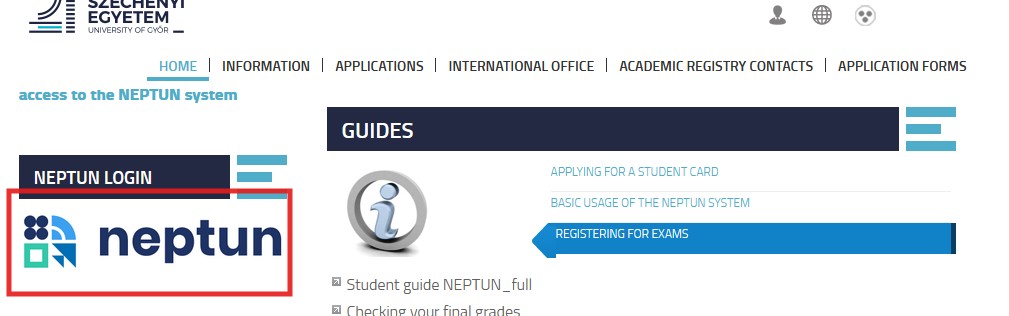
This will take you to a new window, to change the language from Hungarian to English, click on the "globe".

LOGIN NAME: this is your NEPTUN CODE
PASSWORD: this is your password (initially your password is your date of birth NEyyyymmdd); if you have already changed your password previously (i.e. this is not the first time you are using Neptun) then write in your own password.
When you have filled in your Neptun code and your password - Click on LOGIN with the blue background and use 2FA authentication (https://neptun.sze.hu/the-two-factor-authentication-for-student-lecturer-web-access-to-the-neptun-system)
REGISTERING FOR EXAMS
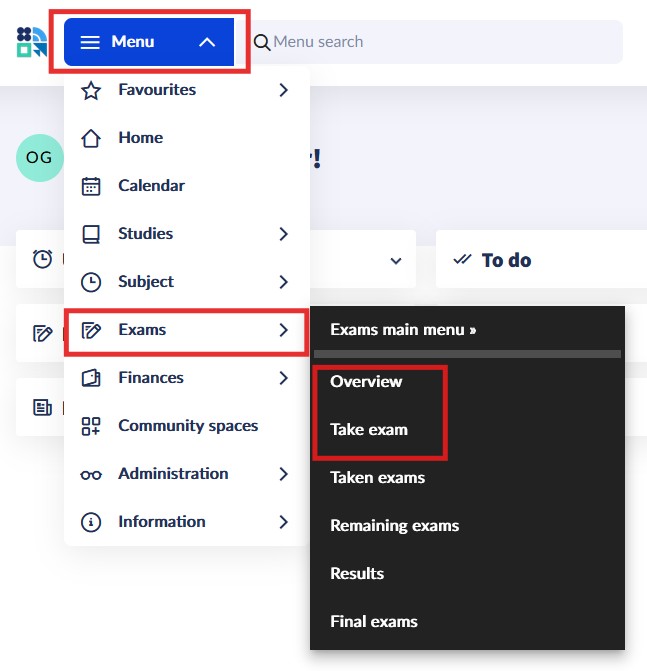
Click in Menu on Exams / Overview or Take exam menu
Before registering for exams, please make sure that the current semester (’term’) is set, then click 'Next', select ’All items' by Subject to see exam details of all the subjects and select one of the subjects if you want to see exam details of a particular subject. Then click on ’Filter list’.
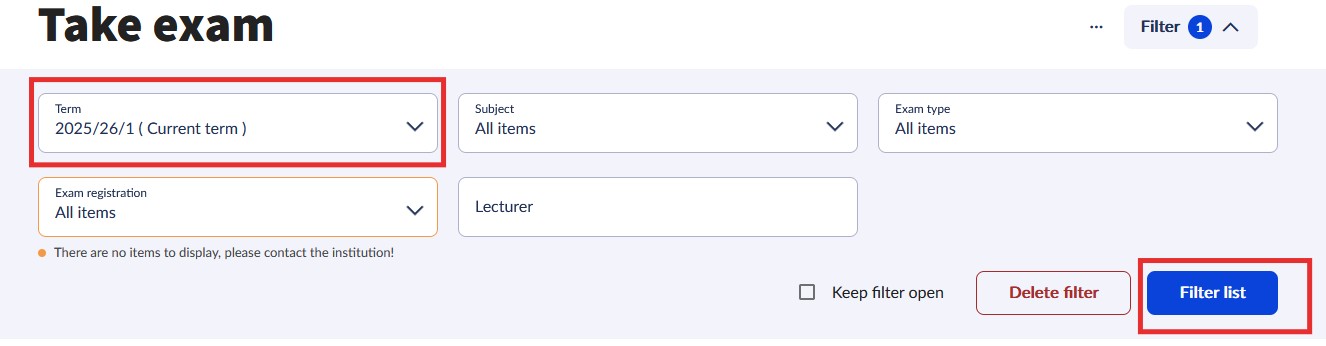
You will then see the data of all the possible exams – there may be more than one date for each course! (course title, code, type of exam: written or oral, date and time, limitation for registration, ’Lecturer’s name. The room number will appear under Details.
To register for the exam click on ’Details / Take exam’ or click Take’.
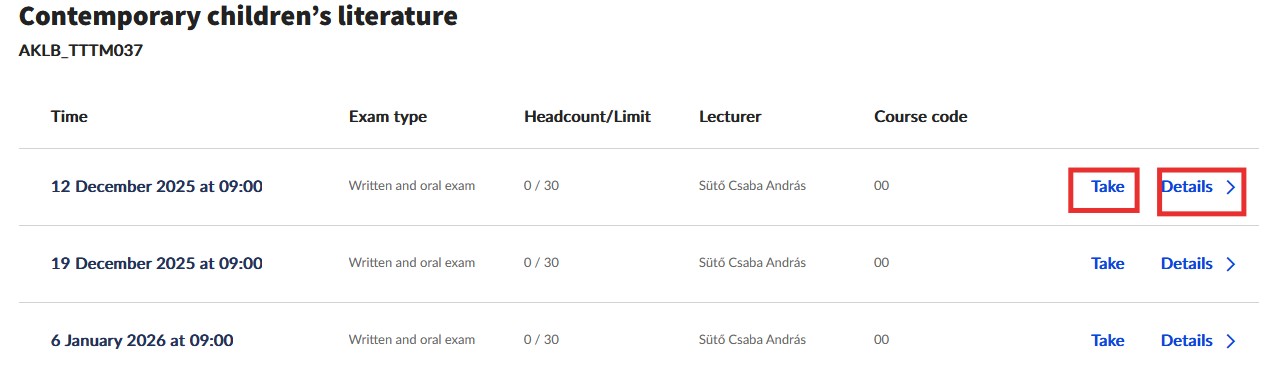
Your registration is successfull if a box with appears: 
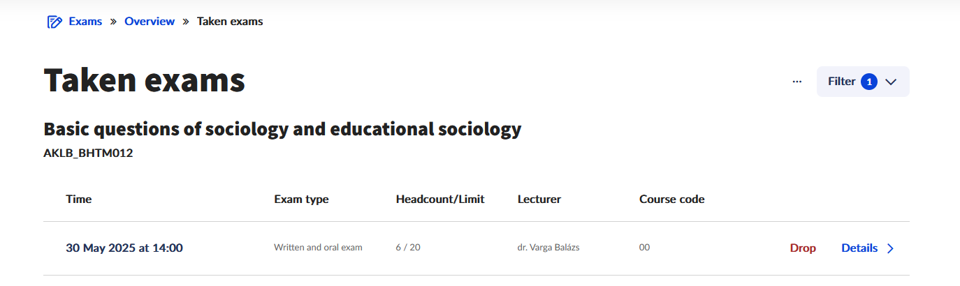
To check the list of exams you have successfully registered for click on ’Taken exams’ under Exams. (Make sure you have chosen the current semester!)
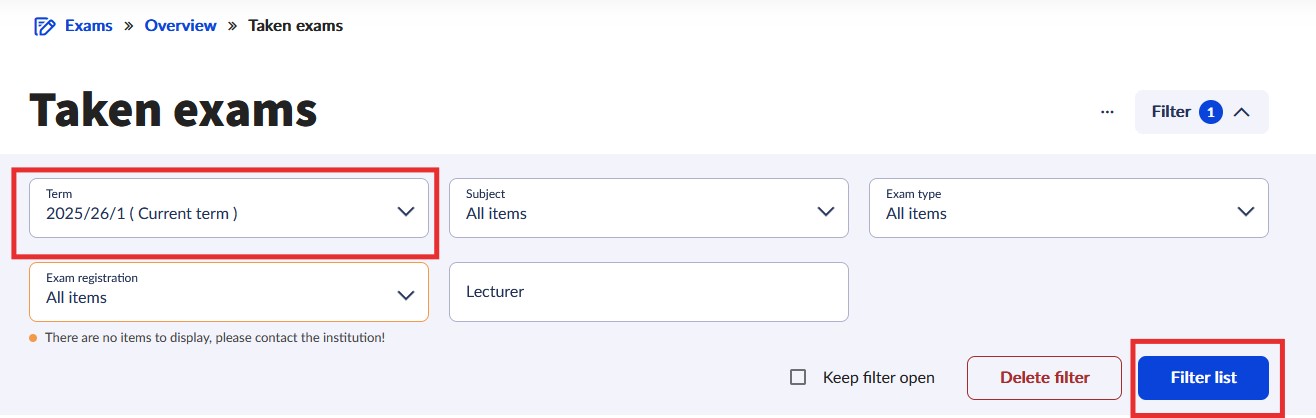
If you wish to deregister from an exam (e.g. you registered by mistake, etc.), click on „Drop”. Alternatively, go to „EXAMS”, pick „Taken exams” and then click on the „Drop” button again.